

Date formats in PowerPro are based on your Windows settings
If you have a brand new workstation, or your workstation has been reset the date format may be incorrect
If this is the case when you login to PowerPro you may see a warning message displayed at the login screen
See below example of the login screen and error
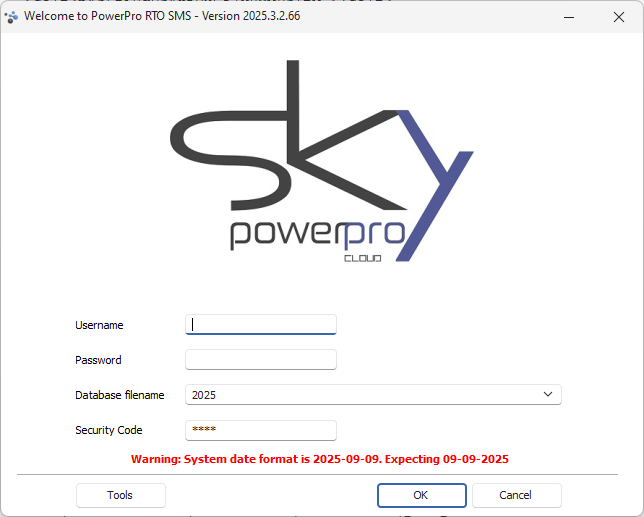
To fix and remove this warning you will need to change the region settings in Windows, we will explain how to do this below:
Open your Windows Settings and click on Time & Language
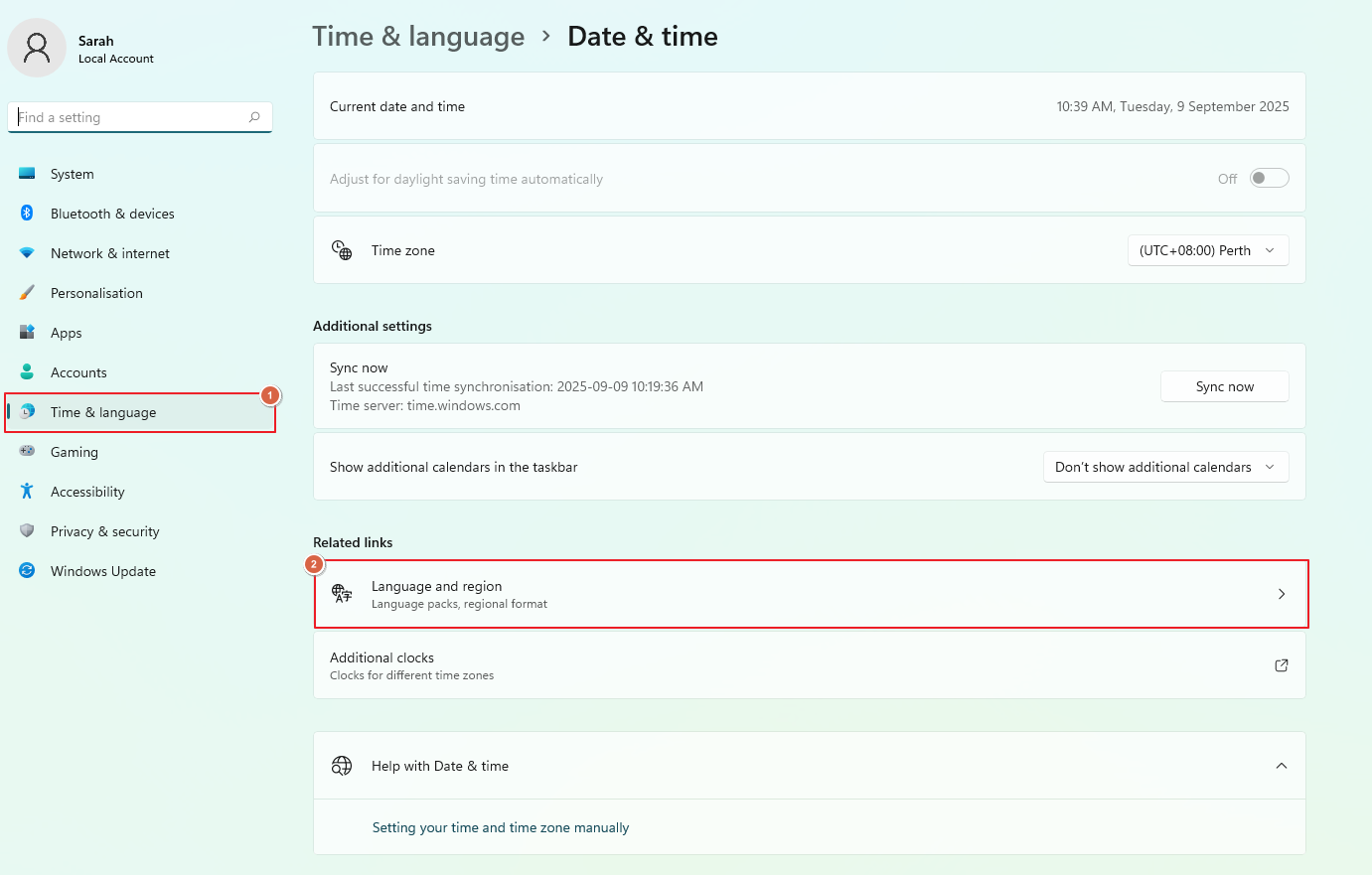
Check that the Time Zone is correct for your state
Then click on the Date, Time & Regional Formatting option
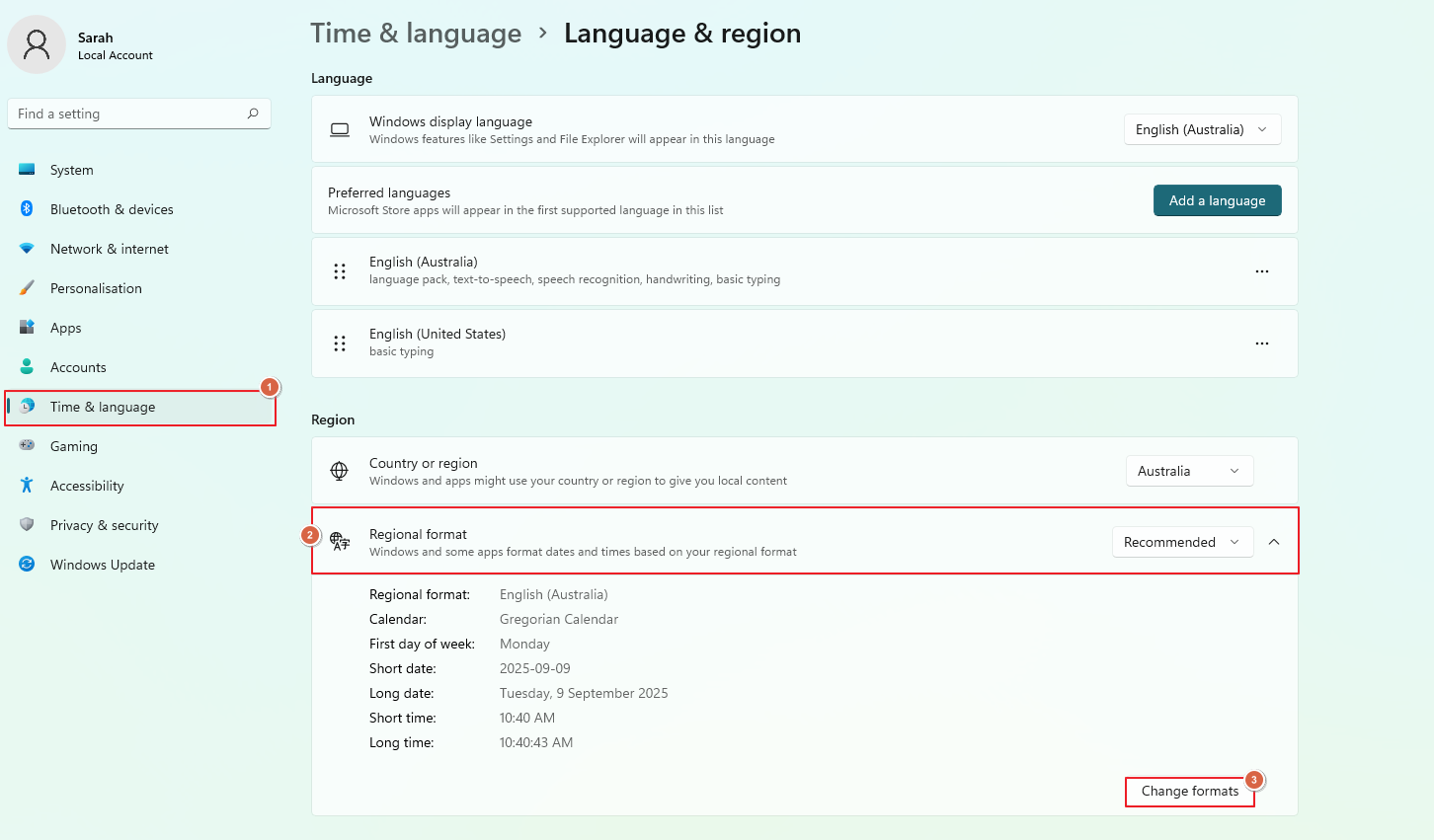
Ensure that the Country or Region is set to Australia and the Regional Format is set to English (Australia)
You can view the format example below that drop down list as below
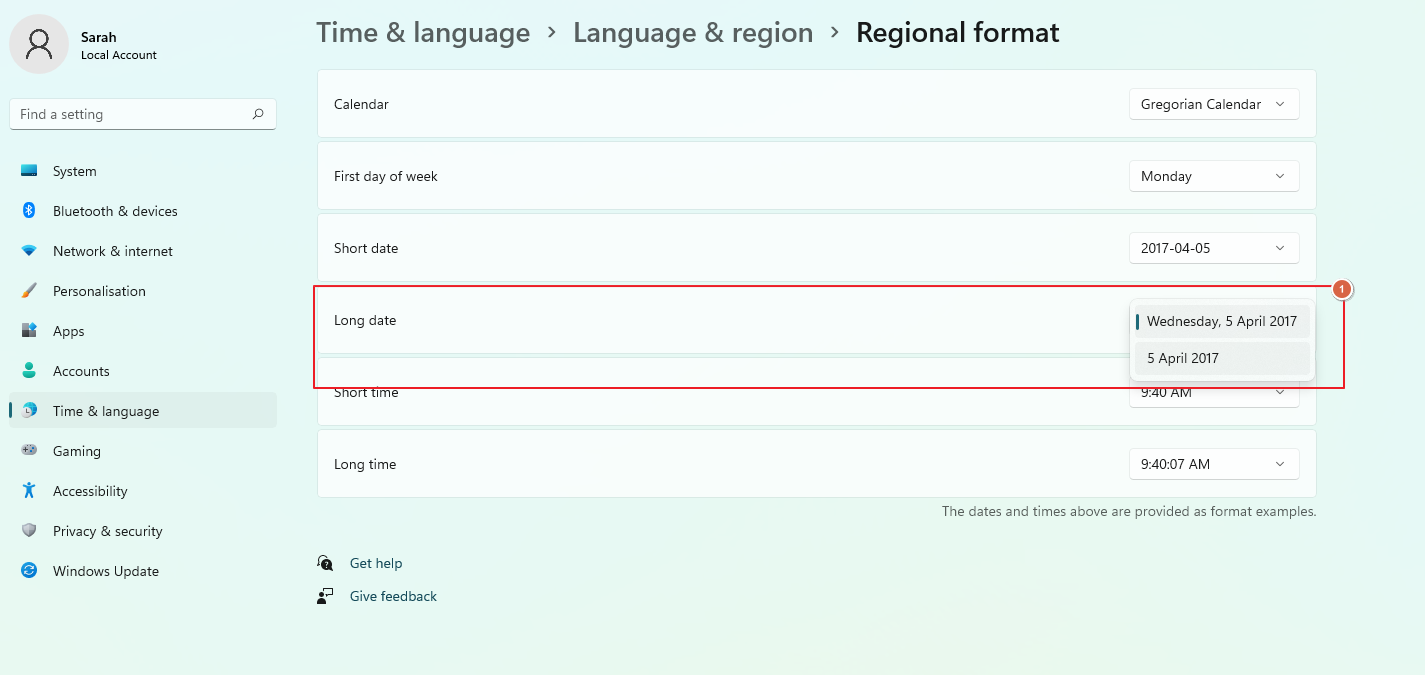
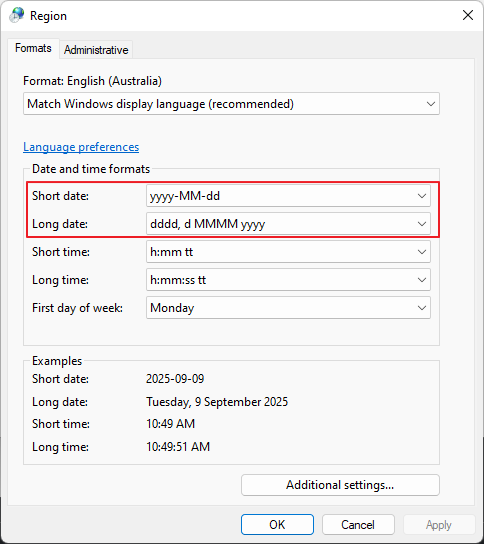
Sometimes it will also be necessary to change the date separators, especially if dashes are used instead of a forward slash
To do this, in the Region screen click on the Additional Date, Time & Regional Settings options in the top right corner
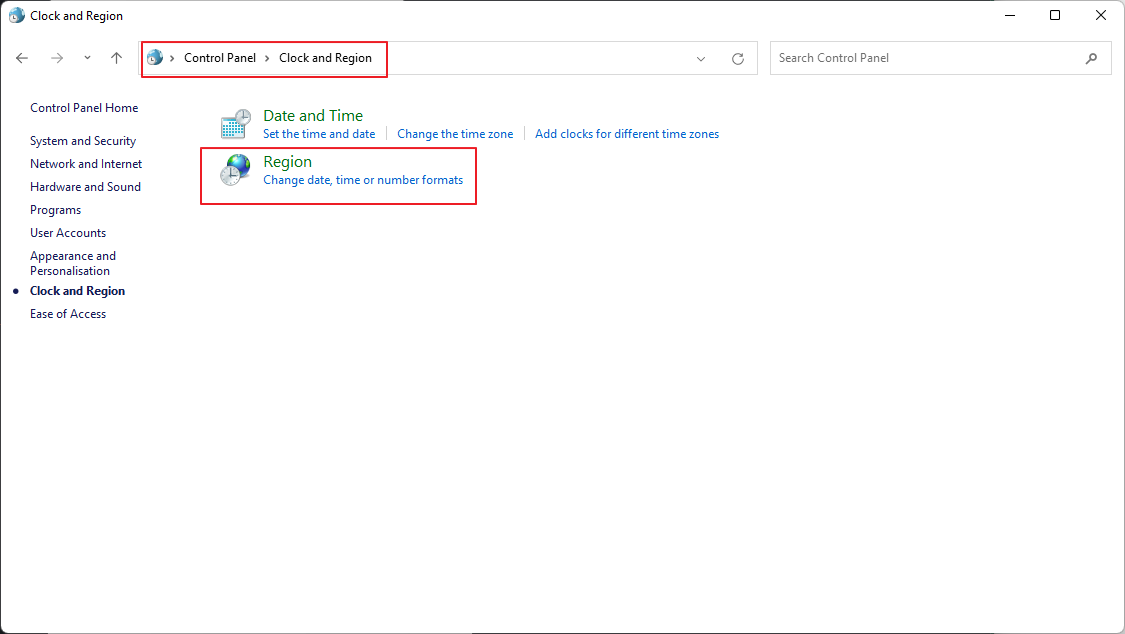
The Clock and Region from Control Panel will be displayed
Click on the Change date, time, or number formats option
Change the Short Date format so that it is dd/mm/yyyy, then click on Apply then OK
Once these are set, restart PowerPro and the warning message will now disappear!