

If you do not have an Outlook email address, then it is still possible to send emails to clients with the use of the SMTP email function
This is especially useful where you might want to send an email from your company, for e.g. support@powerprorto.com.au
Before Starting
To accomplish this, you will need to know the following information for which you may need your IT Team's assistance :
SMTP Server Name - this will be something like 'smtp.powerprorto.com.au' or 'mail.powerprorto.com.au'
SMTP port number - the port number the SMTP server sends mail from
Encryption type - whether the SMTP server uses no encryption, a plain user/password combination or SSL
SMTP Server user name - the user name used to log in to the SMTP server
SMTP Server password - the password used to log in to the SMTP server
How-to
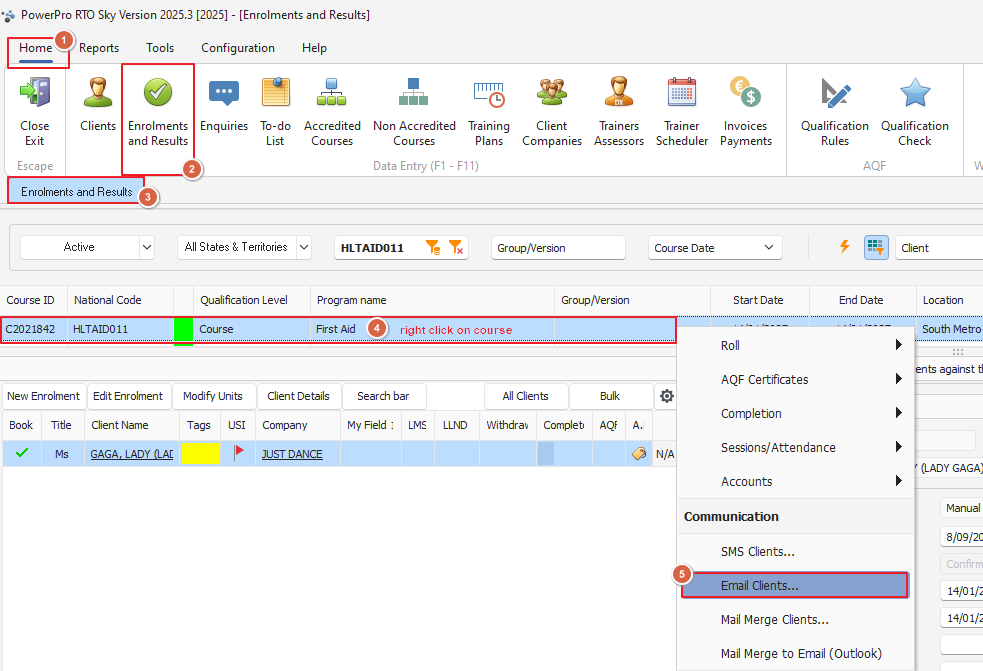
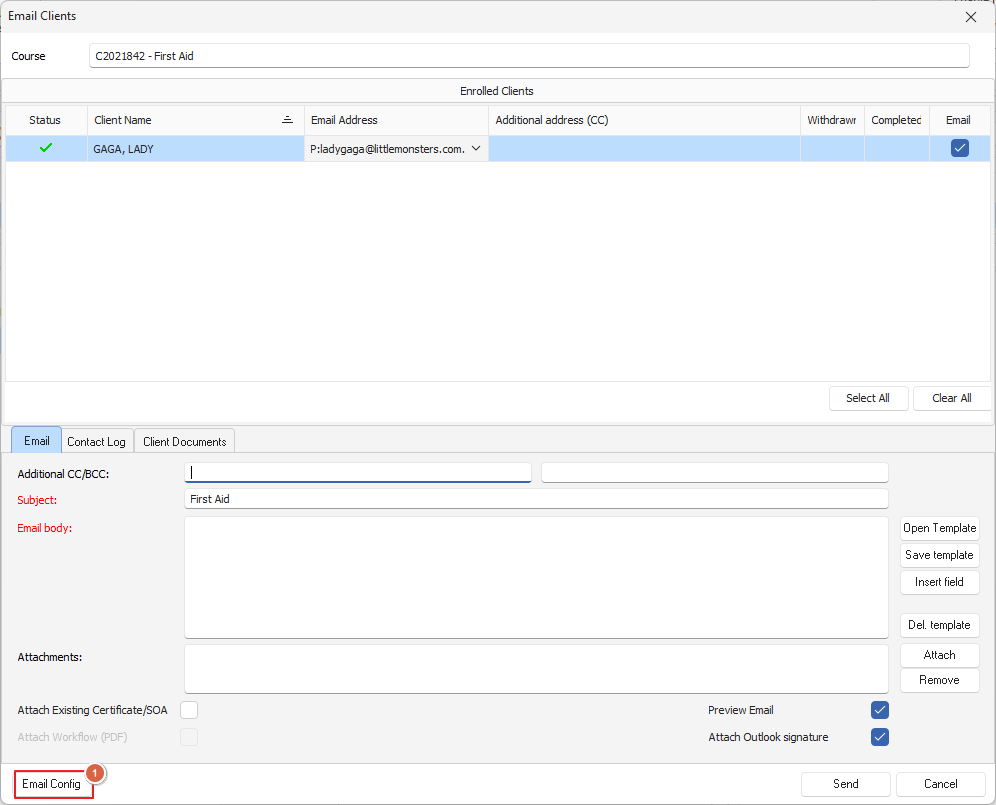
1. Right-click the course and select Email Clients from the menu, which will open the Email Clients window then click the Email Config button
The Email Settings screen will display, click on the SMTP Tab and enter the SMTP server details obtained above and the Sender Email Address
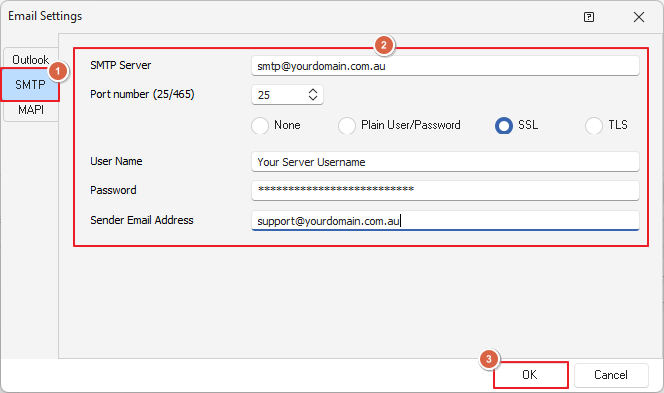
When all details have been entered, click on OK and restart PowerPro for the change to take effect