

PowerPro courses have an AVETMISS tick box indicating whether the course should report or not
While this is very convenient for specific scenarios, if disregarded it may cause the RTO to not report all the courses for a calendar year which then results in data missing on Student USI Transcripts
The above mentioned courses AVETMISS tick box is the field below double-click on the course from Enrolments or from Accredited Courses:
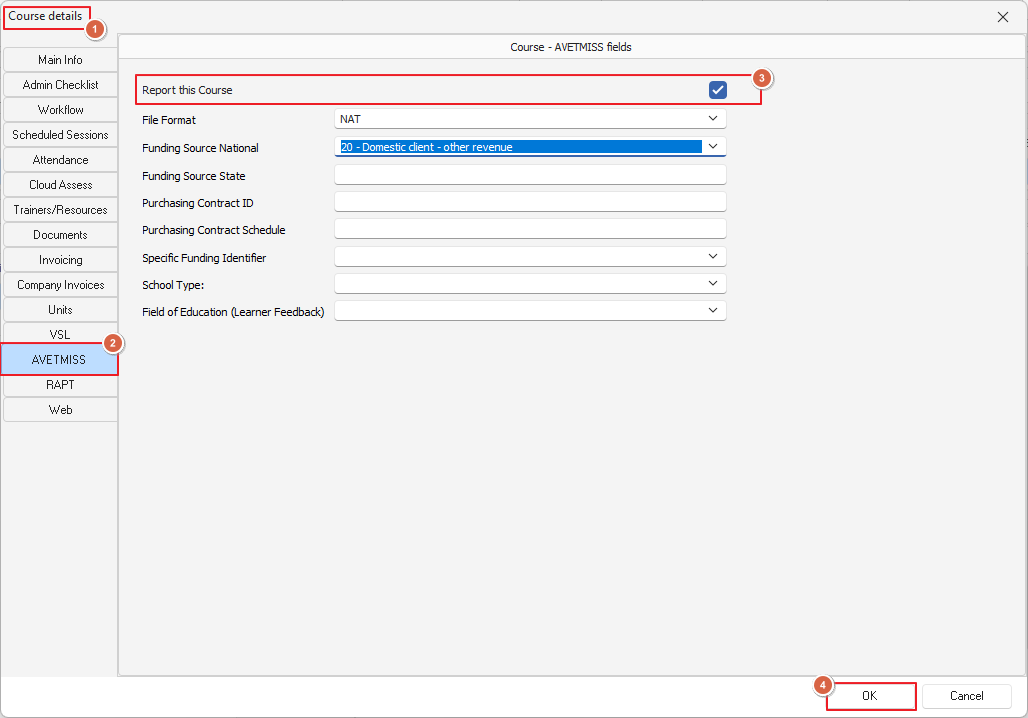
The above window can be used to individually switch a particular course to AVETMISS report or not
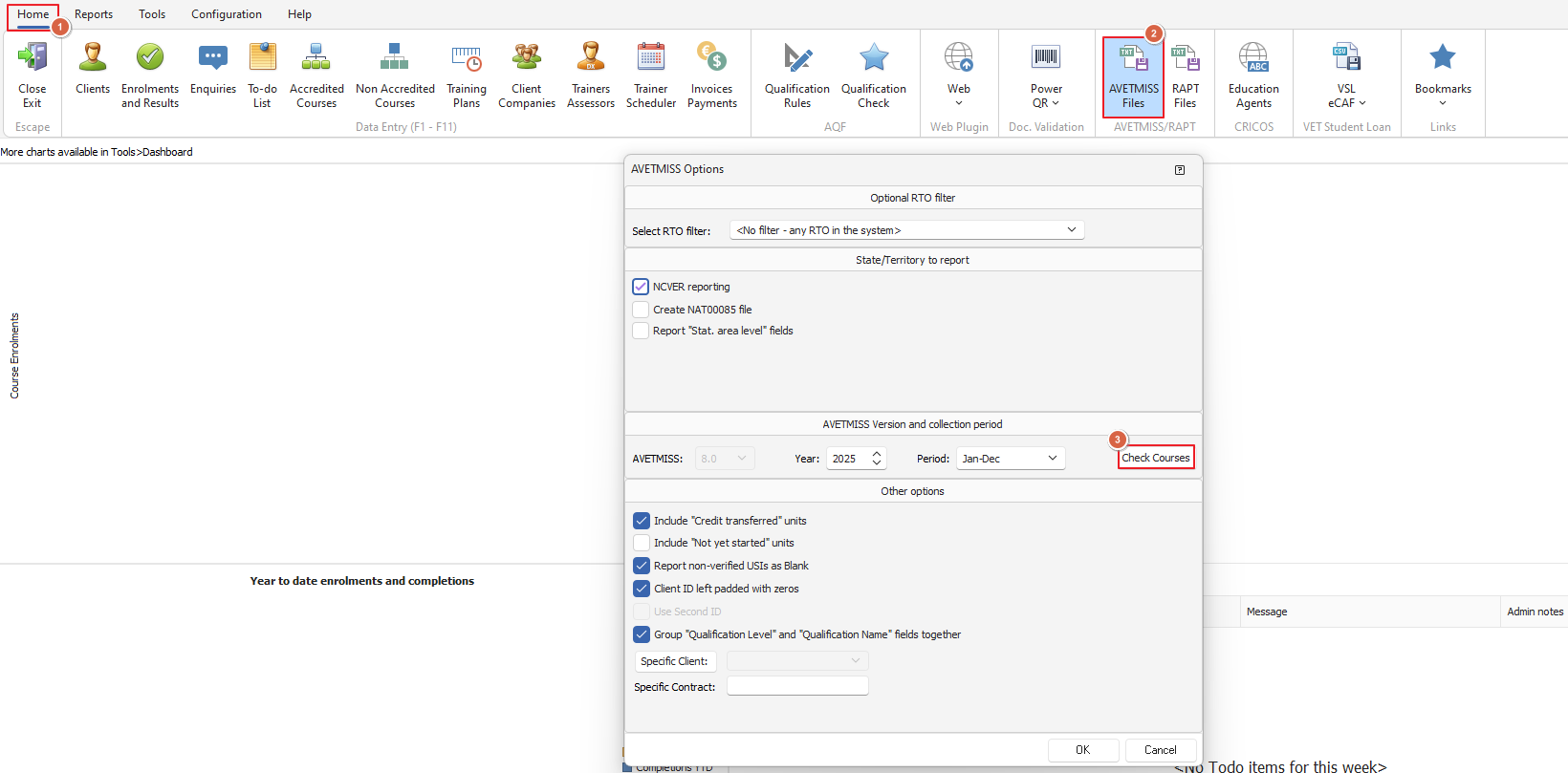
However, the best way to ensure all AVETMISS courses are being reported is through the AVETMISS Files generation process:
From the home screen click on the AVETMISS Files button
Then the AVETMISS Options screen will display, click on the Check Courses button
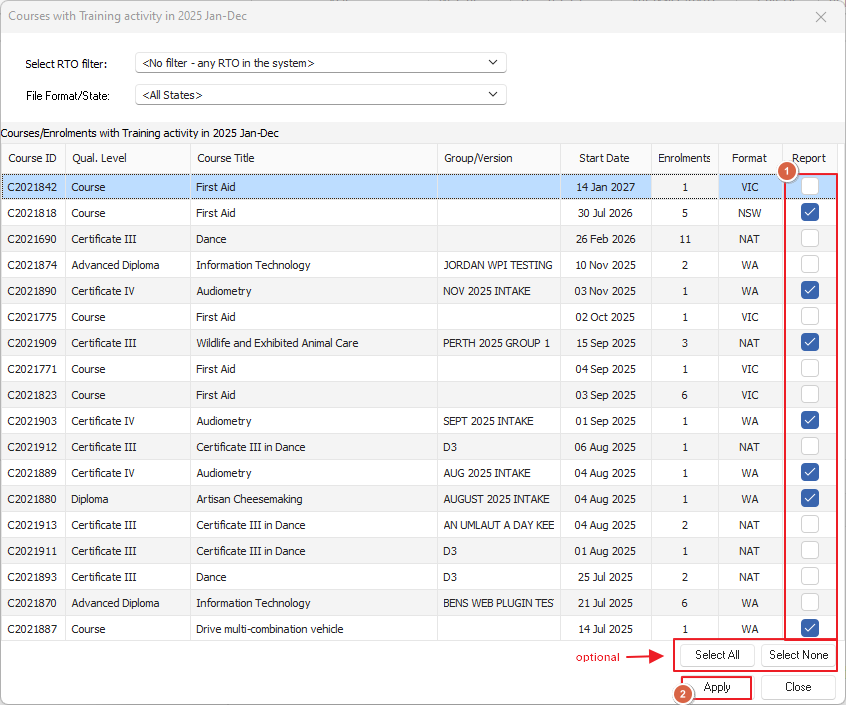
A list of all courses with training activity in the AVETMISS Reporting year will be listed created
These should all have the last column ("Report") checked, we recommend clicking the Select All button then clicking on the Apply button
Click on the close button when done
The AVETMISS options screen will reappear, and from there AVETMISS Files can be created as per usual