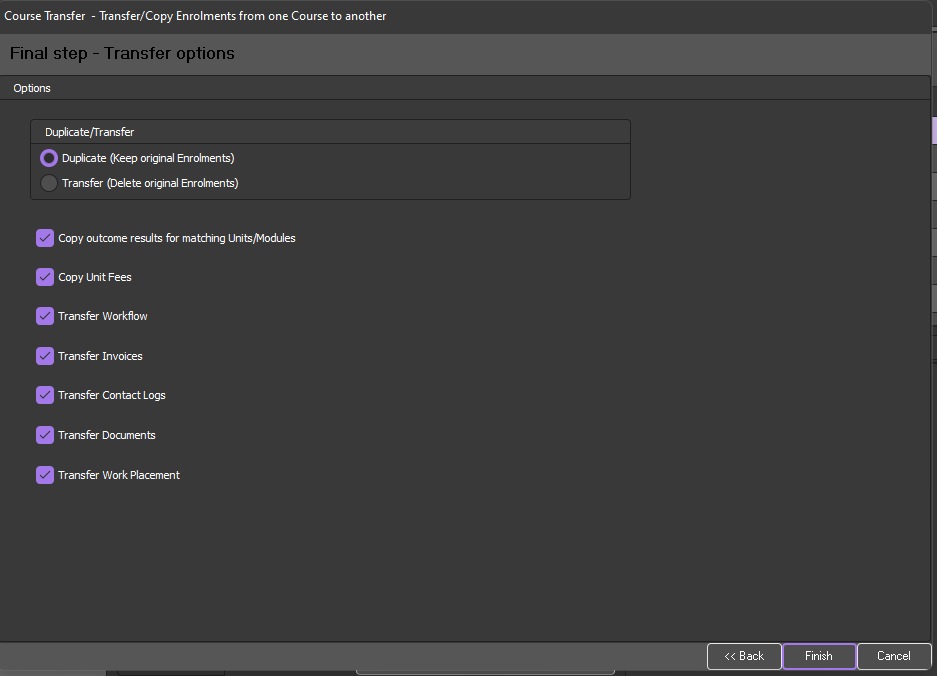
Some information about the enrolment transfer:
The transfer has two modes, 'Duplicate' which is used to 'Copy' and 'Transfer' which is used to 'Move' an enrolment.
It is commonly used when:
Oops, I enrolled a student in the wrong course / date! - Please use Transfer not duplicate
The course is in transition, the student must be reported in both course national codes - Please use Duplicate not Transfer
Heads Up! If you haven't used this feature before, create a dummy student and give it a try! It is a really powerful and helpful tool, but can cause some headaches if used incorrectly.
Some helpful pointers on this process:
You will be forced to use the 'Duplicate' action when the enrolment has at least a unit with a final outcome and that unit is not part of the new course
If you are performing the 'Duplicate' action (if you select to 'Transfer' the workflow), invoices, contact logs, docs, or work placement, these will be REMOVED from the original, and allocated to this new course (They can be transferred back, but it will have to be manually)
How to use the transfer
Use the 'Transfer Enrolments' function as follows:
Open the 'Enrolments and Results' window
Highlight the relevant course
Highlight the relevant client (student)
Right-click on that client and choose 'Transfer Enrolment' from the menu (this will open the Course Transfer window)
Go through the Course Transfer wizard
On the last step choose to Duplicate or to Transfer
If you chose Duplicate the client will be enrolled in both courses. Otherwise the client will be moved to the target course
The final step of the Course Transfer wizard window looks like this: