

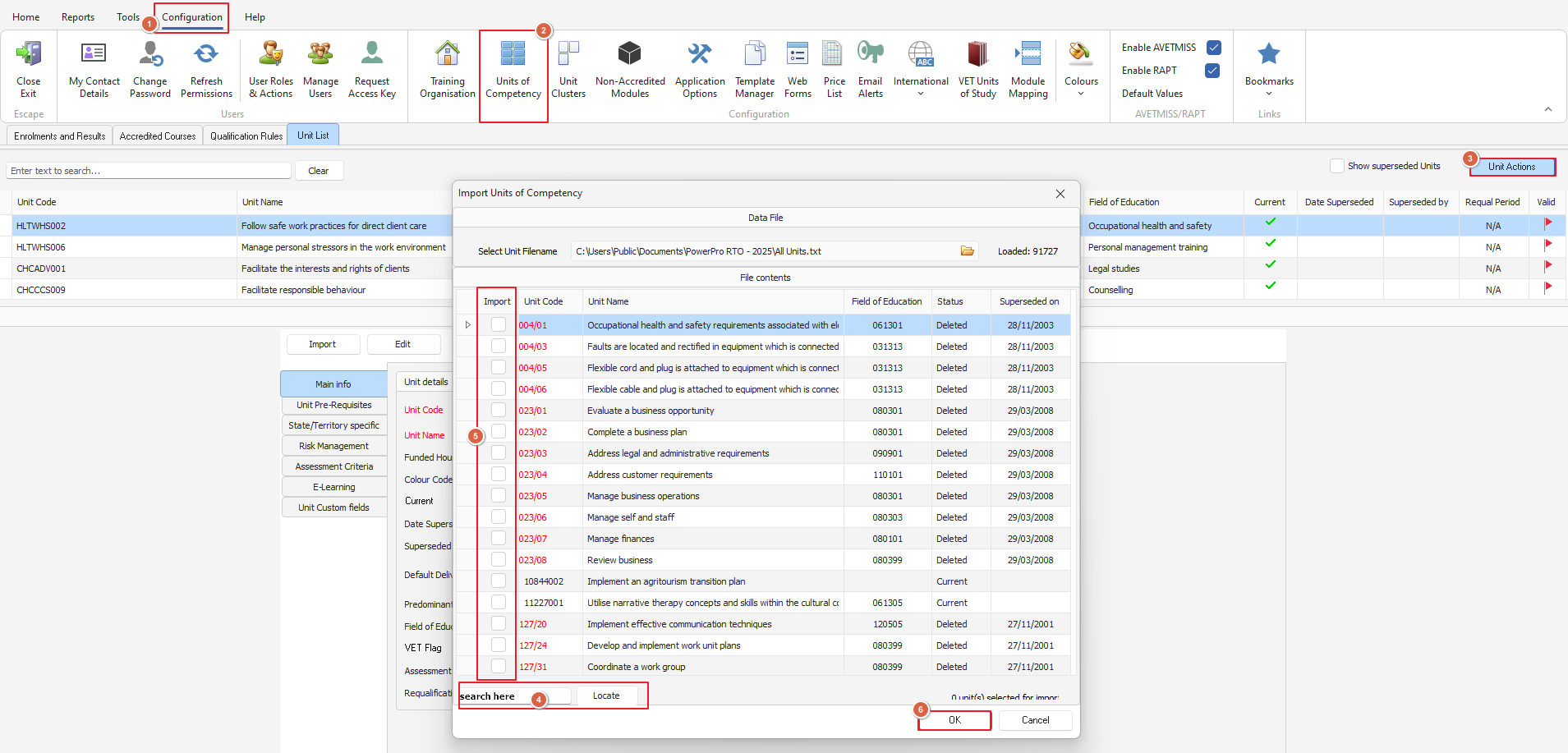
Open the 'Configuration' menu
Open the 'Units of Competency' view
Click on the 'Unit Actions' button towards the top right of the window
3a.Select 'Import Units' from the listSearch for the unit(s) by code using the 'Locate' text box and button towards the bottom left
Using the check box next to the Unit Code, tick the Unit(s) to import
Press OK when you have selected all units to import
What if the unit I want is not there to import?
If you can not find the unit you are looking for it means the unit needs to be downloaded from the TGA website - we have a direct link to do this in PowerPro
From the 'Units of Competency' menu click 'Unit Actions' then 'Download TGA Units'
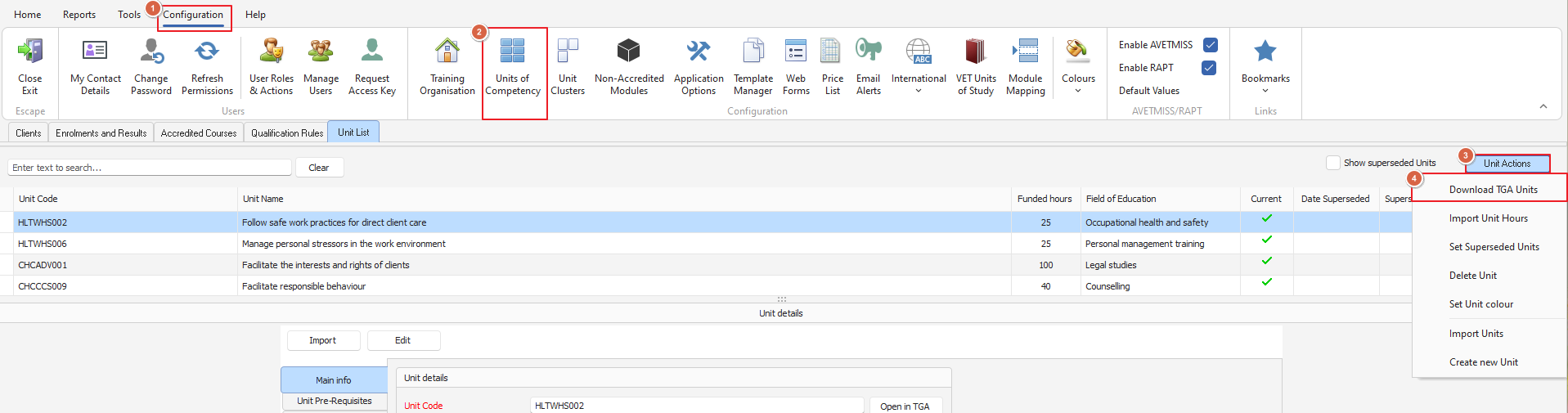
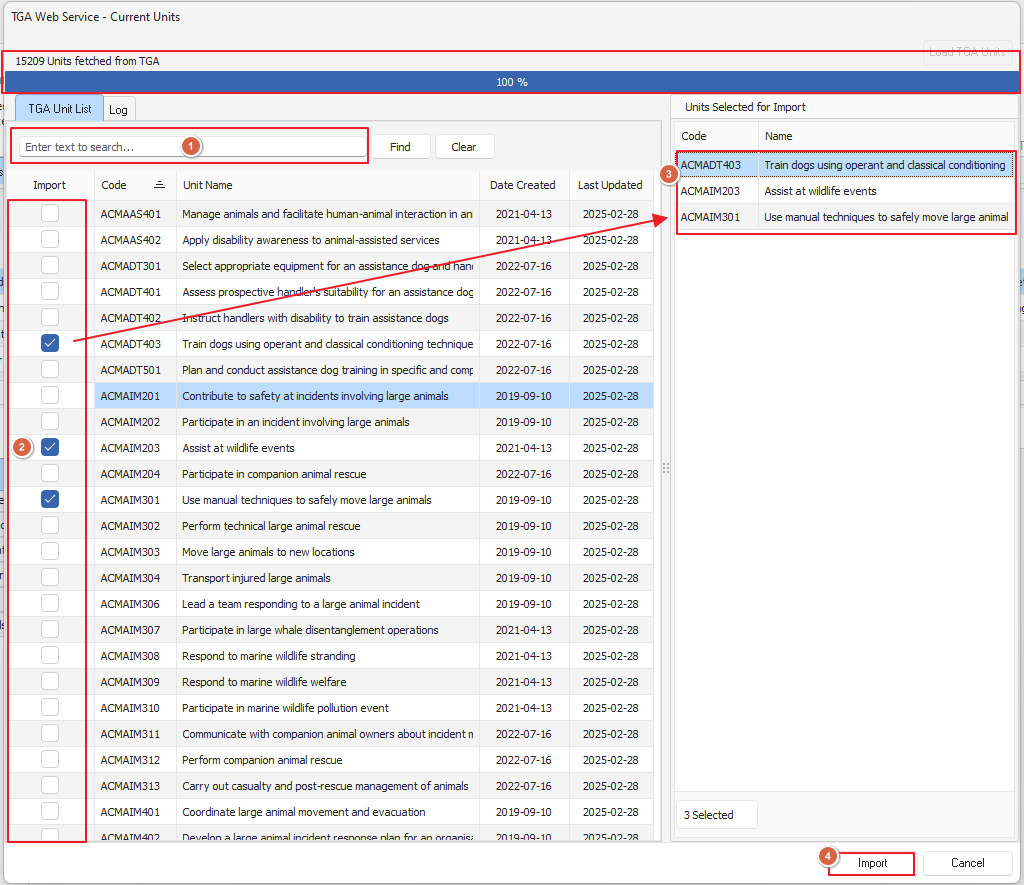
This will open the 'TGA Web Service - Current Units' window from here we want to click 'Load TGA Units'

Give this a moment and it will load up all the current units from the TGA website which we can then import as needed into PowerPro - the highlighted progress bar will show as 100% when done
You can search for a unit or unit code using the search bar above you can click each unit you want to import (or double click on the unit name this works too) the chosen units will then show in the 'Import List' to the right
Once you have your selected units you can click 'Import' to finish the process
If you are looking to import a superseded unit click here for the relevant FAQ article