

The PowerPro Email subsystem has a built-in "merge-like" function. Data fields are replaced with actual data when each email message is created. This means emails can be personalised using fields such as client name, course name, unit progress, training plan, etc.
Email templates allow the RTO to streamline and ensure consistency on client communication. Once a template is saved, it can be reused anytime!
To create an email template follow these steps:
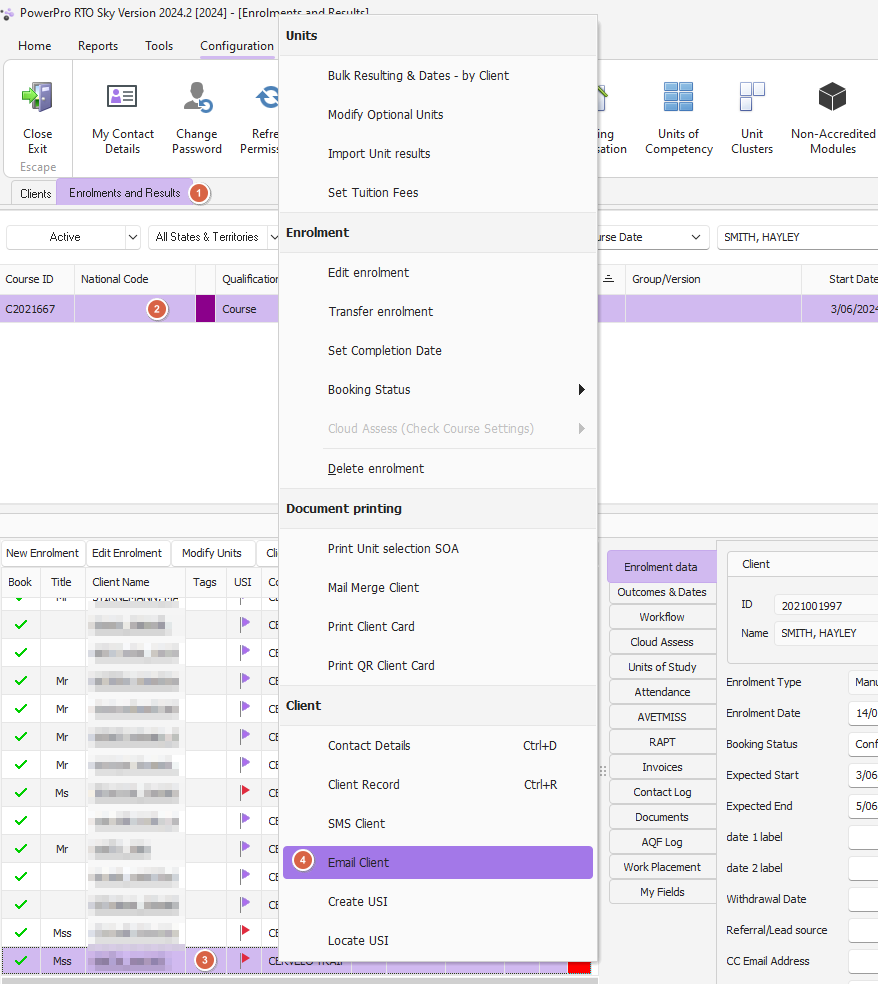
1. From the 'Enrolments & Results' view, right click on a client and choose 'Email Client' as per the image below.
3. The following window pops up:
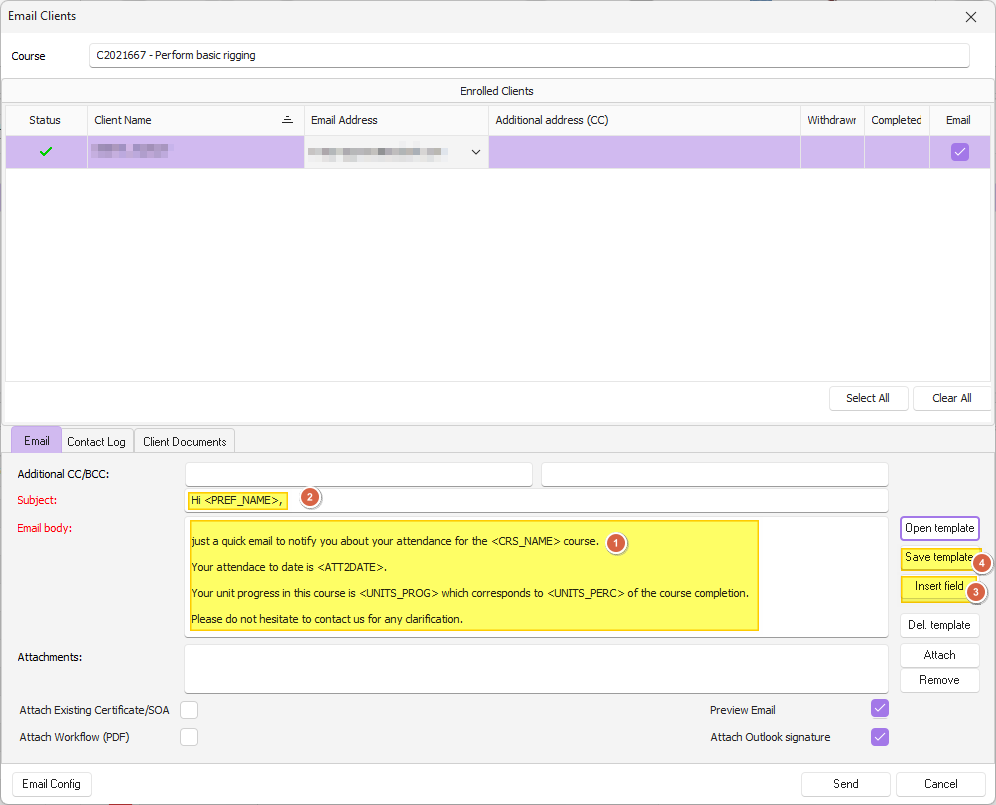
Using the above window, type the email body combining static text with data fields
To insert a data field click on 'Insert field' to pop the fields menu
Should you need to insert a data field in the subject area, generate the field into the email body area and then Cut/Paste the field to the subject box
Once you are happy with the email layout, click on 'Save template'
Once saved, a template can be used by clicking on 'Open template'
All done your template is ready to use!