1 – Course ID Number
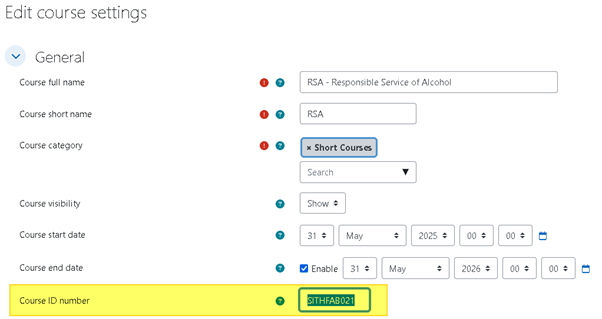
Check the settings for the course to make sure that the Course ID number is either:
The Code of Unit to be resulted in PowerPro
The Code of the Unit Cluster to be resulted in PowerPro
The Code of the Module (non accredited training) to be resulted in PowerPro
Please note:
Moodle may be configured to show a more meaningful label such as "Code for PowerPro" instead of the default Moodle label "Course ID number"
2 – Course Grading
Use the Course completion settings (from the Course administration menu) to ensure the grading is enabled and a value of 2.00000 is set:
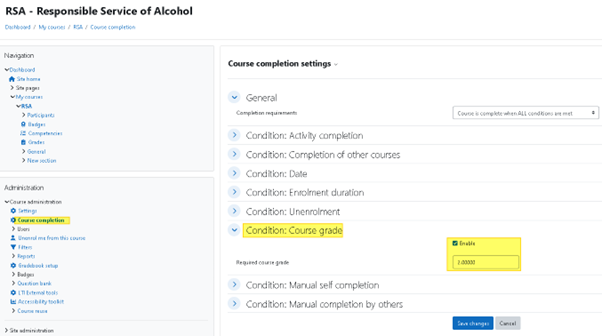
Required Course Grade = 2.00000
3 – Set Course Total Grade to Competent (2)
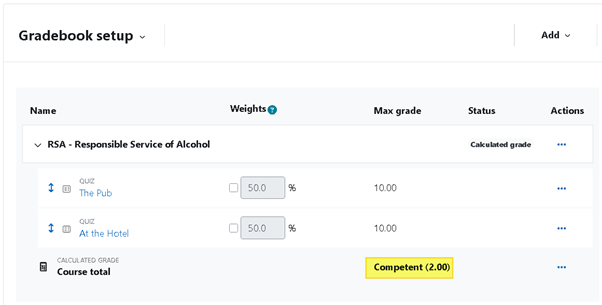
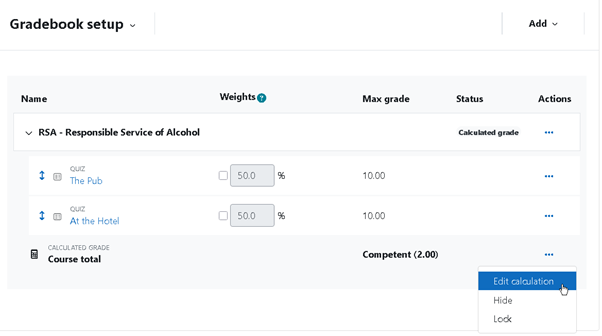
Use the Gradebook setup to check the Course total Max grade reads Competent (2)
4 – Check Course total Calculation formula
Edit Calculation to ensure the formula converts the total points (20 in this case) into a grade of 2 (which is competent)
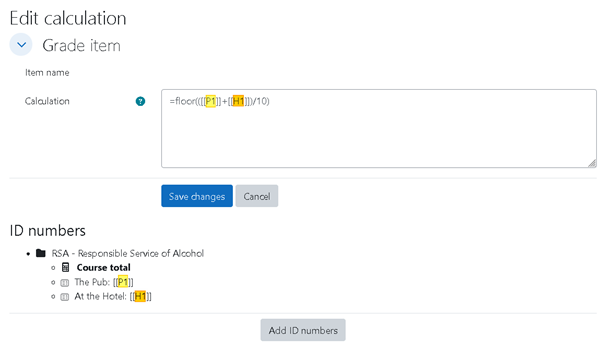
Note: Ensure each activity ID in the formula (P1 and H1 in this case) corresponds to a valid activity “ID Number”, as per image above.
The Formula uses the activities Max grade. On completion of all activities the value is 2 (for Competent):
(10 + 10) / 10 = 2
The floor function removes the decimal part of the number (e.g. 1.66 becomes 1)
The double square brackets [[P1]] are used to identify the assessment activity ID Number
Examples of Calculation Formulas with a different number of assessment activities (assuming all are set with a Max grade of 10):
Number of assessment activities | Formula |
1 | =floor([[Quiz1]]/5) |
2 | =floor( ([[Quiz1]]+[[Quiz2]]) /10) |
3 | =floor( ([[Quiz1]]+[[Quiz2]]+[[Quiz3]]) /15) |
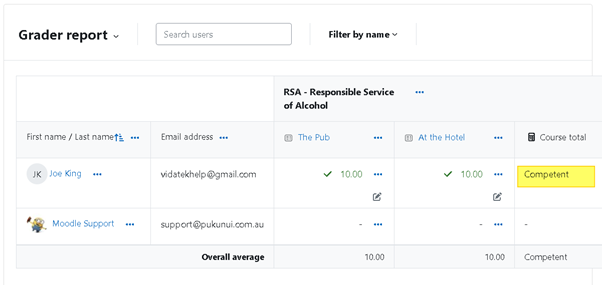
5 –Grader Report: Check for “Competent” in the Course Completion column
The Course total field should read “Competent” as per image below:
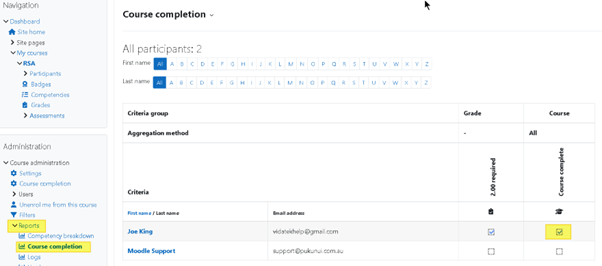
6 – Check the Course Completion field
Use Course Administration>Reports>Course completion to ensure the Course Completion field is be checked as per image below (this may take a minute if you just changed the calculation formula):