

To create a new PowerPro User or to manage existing any ones, follow these steps:
1. Find a PowerPro user that has system access to Manage Users, they will need to login in themselves
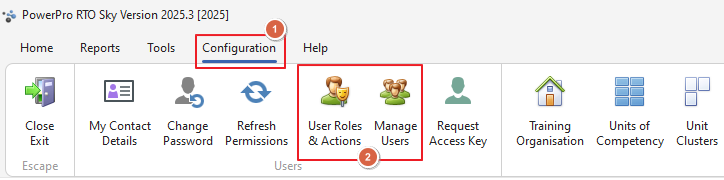
2. Browse to the Manage Users option
*If it is greyed out and not available, this user does not have the required permissions
** Note: There is a login called RTOADM that is the PowerPro super user - You may want to find the individual who holds that login
3. Bottom left corner, you can see your standard options:
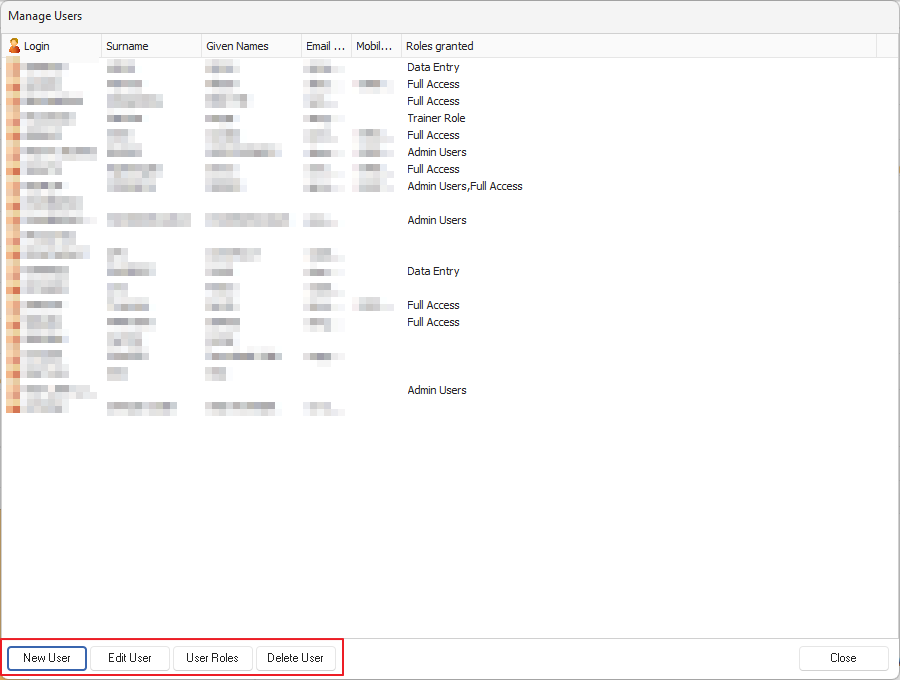
New User: Create a new user - Username minimum 5 character length & password strength = 6 characters
Edit User: Allows you to edit existing user - Change the password and/or adjust their user roles
User Roles: Adjust or review the User roles assigned to the user
Delete User: Powerful action - Please review decision before proceeding - You can always re-create user if needed
4. If you want to review or create new user based permission roles, browse to the User Roles & Actions area as per the first screenshot