

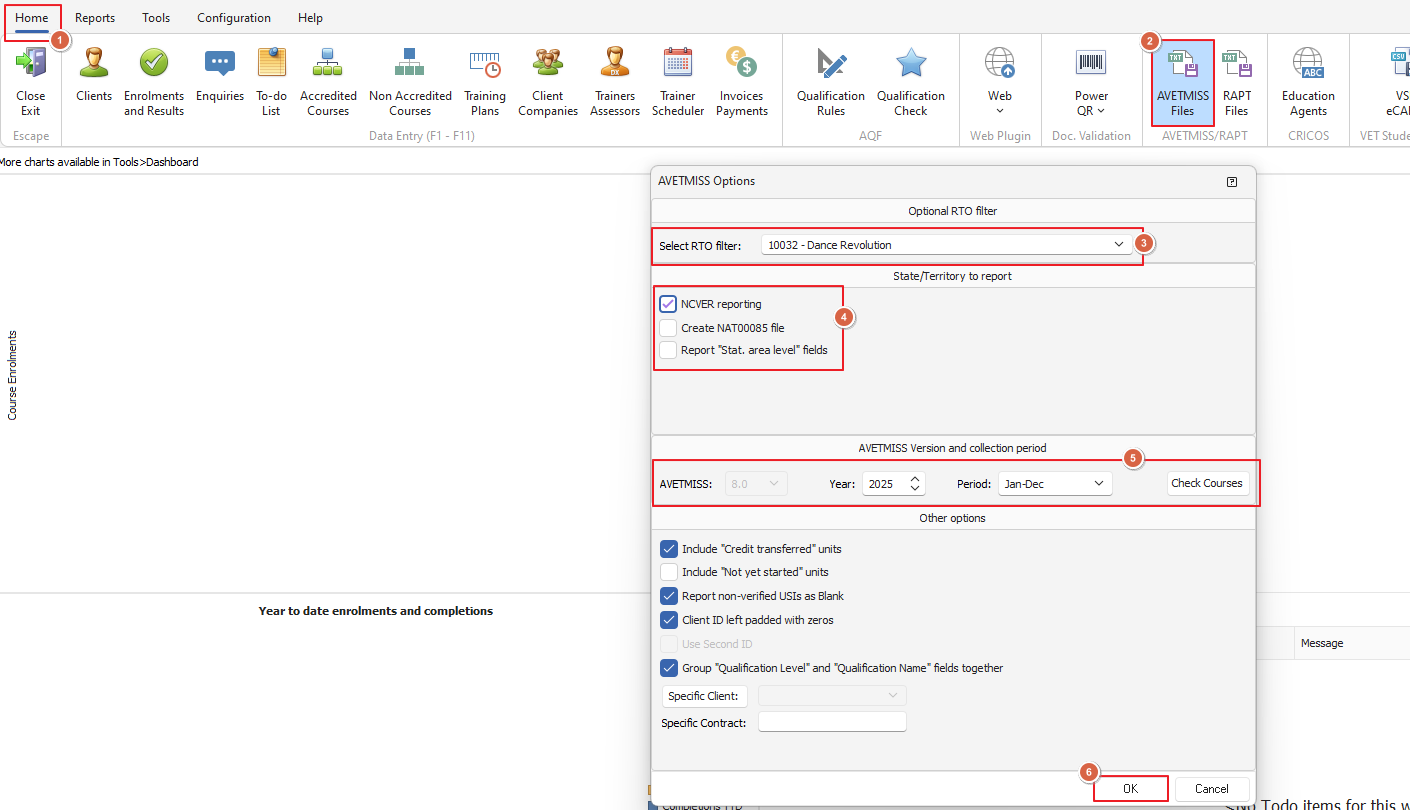
From our home screen we're going to click the AVETMISS files button located as per the below screenshot
This will open the 'AVETMISS Options" window, here you will select the relevant RTO, tick whether you want the NAT85 file and select your reporting year and period (based on if you do yearly or quarterly reporting)
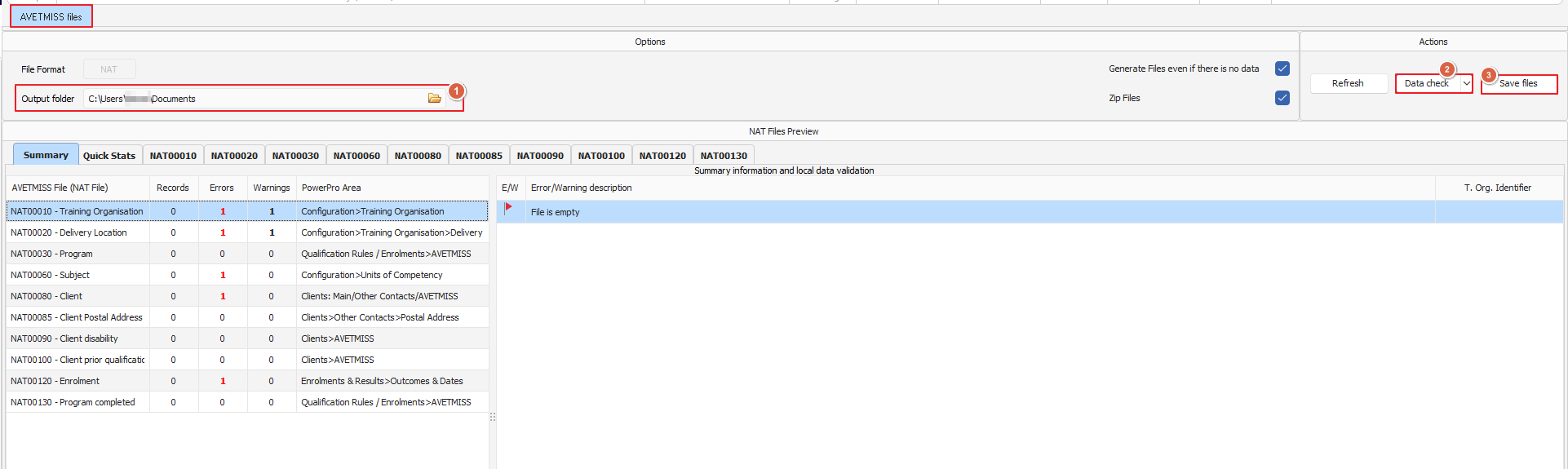
Once you've made your selection on this window and clicked OK the AVETMISS files will load, from here we're going to select where we want the files to save (so you can upload them to avs.ncver.edu.au easily later) and do a data check which will precheck your data for errors and potential warnings to be fixed prior to uploading
This is an example of what your screen will look like when the data check has been run, errors are in red and warnings are in black
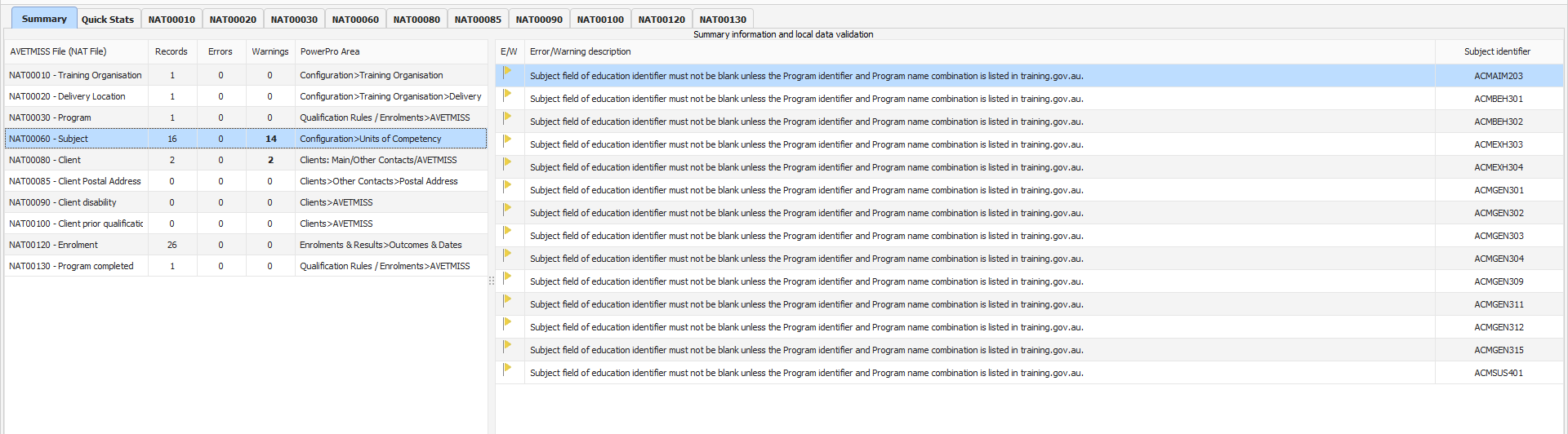
Once the data check is complete and you've fixed any errors you can save the files and upload them to the AVETMISS Validation Software (again at avs.ncver.edu.au) for final checks and submission