

Q: My QR code is not scanning correctly
A: There are three key requirements for ensuring that a parchment can be displayed on a mobile device successfully, these requirements need to be completed in the following order:
Ensuring client consent
Printing the parchment with the QR code
Uploading that parchment to PowerQR
For further information about these requirements, refer to the PowerQR User Guide located in PowerPro at Help > User Guides > PowerQR User Guide
----------------------------------------
Q: When I scan my document it comes up with a message saying "This parchment has not been uploaded to the PowerQR Validation platform"
A: The document has not been uploaded into PowerQR yet, upload via PowerQR >Upload Parchments, then try again
----------------------------------------
Q: When I go to upload the parchment onto the PowerQR Validation Platform, no clients are displayed
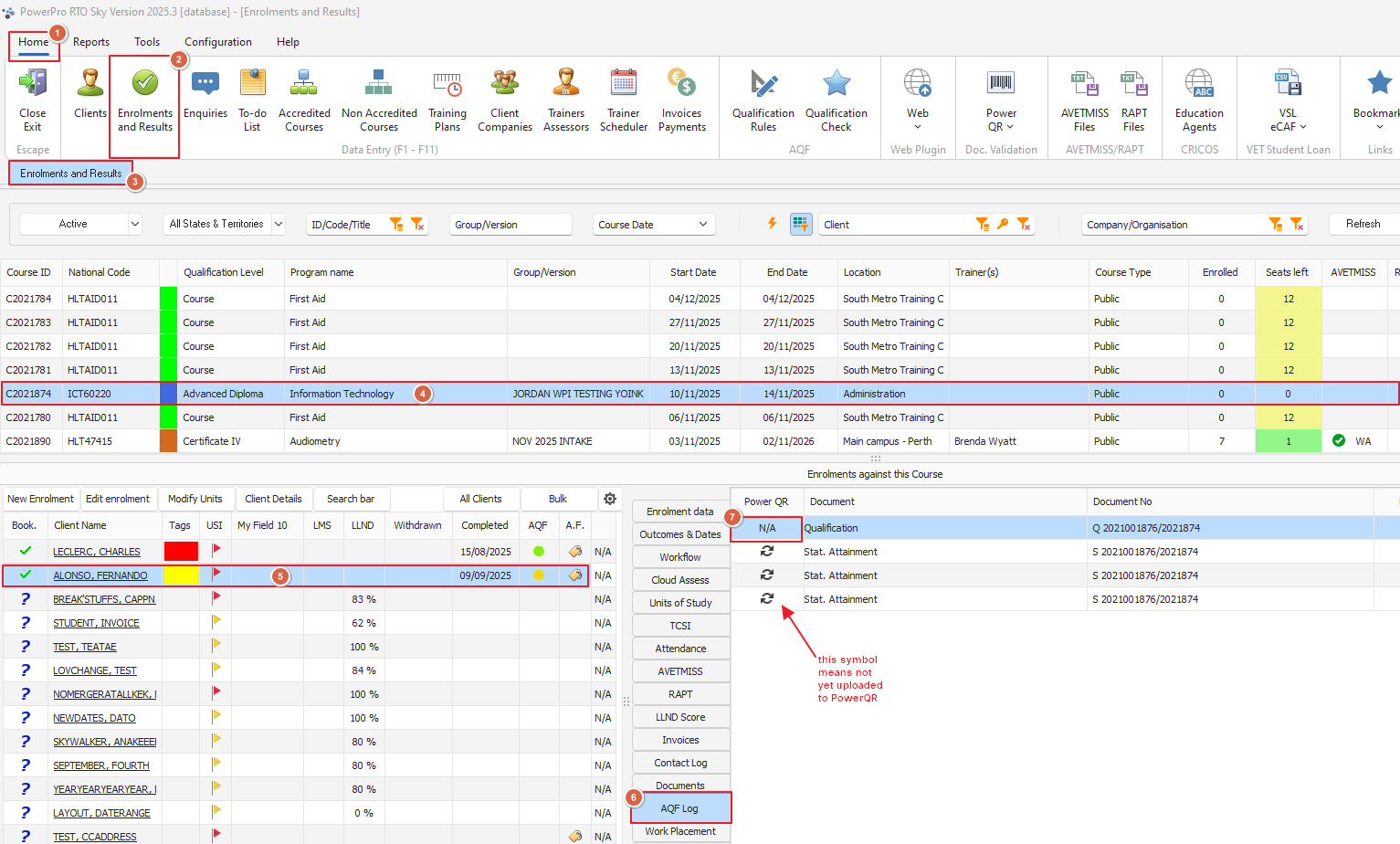
A: Check the AQF Docs Printed tab under Enrolments and Results
If your parchment has 'N' displayed in the PowerQR column (see screenshot below) it means the parchment was printed before the client consent tick box was checked Ensure the tick box is checked then print the parchment again via the Qualification Check screen, then reattempt to upload the parchment
----------------------------------------