

1. Have your RTOADM user request a Sky Access Key
Your RTOADM user will need to request a Sky Access Key
Please Note: The Sky Access Key can be requested to grant multiple installs, if you need to set up multiple new access points
Don't know how to request a Sky Access Key? click here
BEFORE CONTINUING: Please ensure you have a SKY access key, as per the link above
2. Download the workstation installer file corresponding to your database version
First you need to install the PowerPro RTO application on your Windows system
2025 installer - click here
Unsure which version to pick? Check with someone else in your PowerPro database, or this guide may help
3. Run the Installer
Once the install file (workstation.exe) has been downloaded, please run it to install the PowerPro RTO application
There should be no need to adjust anything, just a matter of clicking Next and Install to go through the installation wizard
4. Activate your Sky key
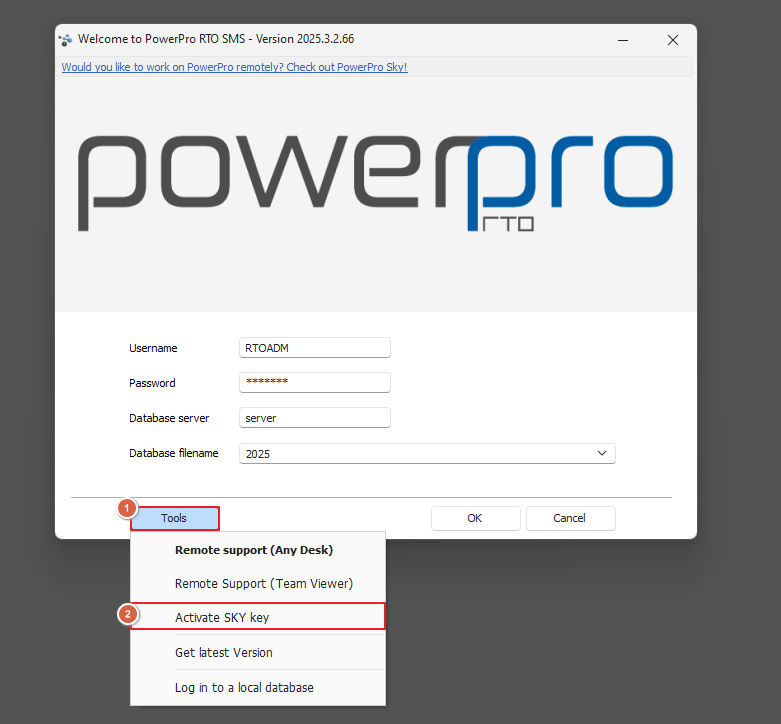
On your Desktop you should now see PowerPro RTO icon. Please open the PowerPro to access the Sky Access Key activation area as per image below
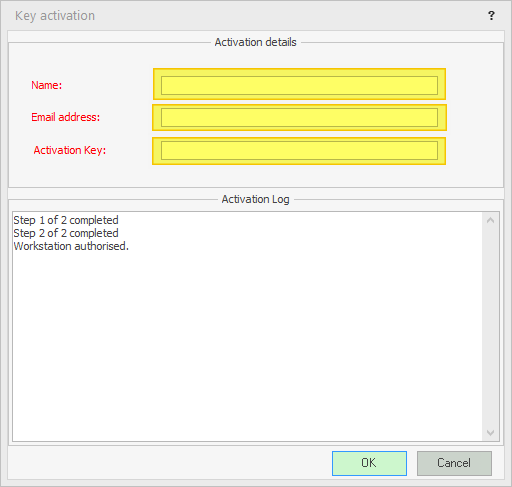
Fill in all the fields as shown below, then click 'OK'. A log will populate and let you know the workstation is authorised:
You should now be able to log into your Sky database, using the login details that your RTOADM user provides to you