

Important note: Microsoft Suite support (Word, Excel etc) is out of scope for PowerPro so this is general advice only
If you have certificates that are generating from PowerPro and the logos/formatting are incorrect and distorted despite the PowerPro template itself showing everything where it should be you may have compatibility issues with your template's Word document
To fix this you will need to check out the template document Configuration > Template Manager for editing
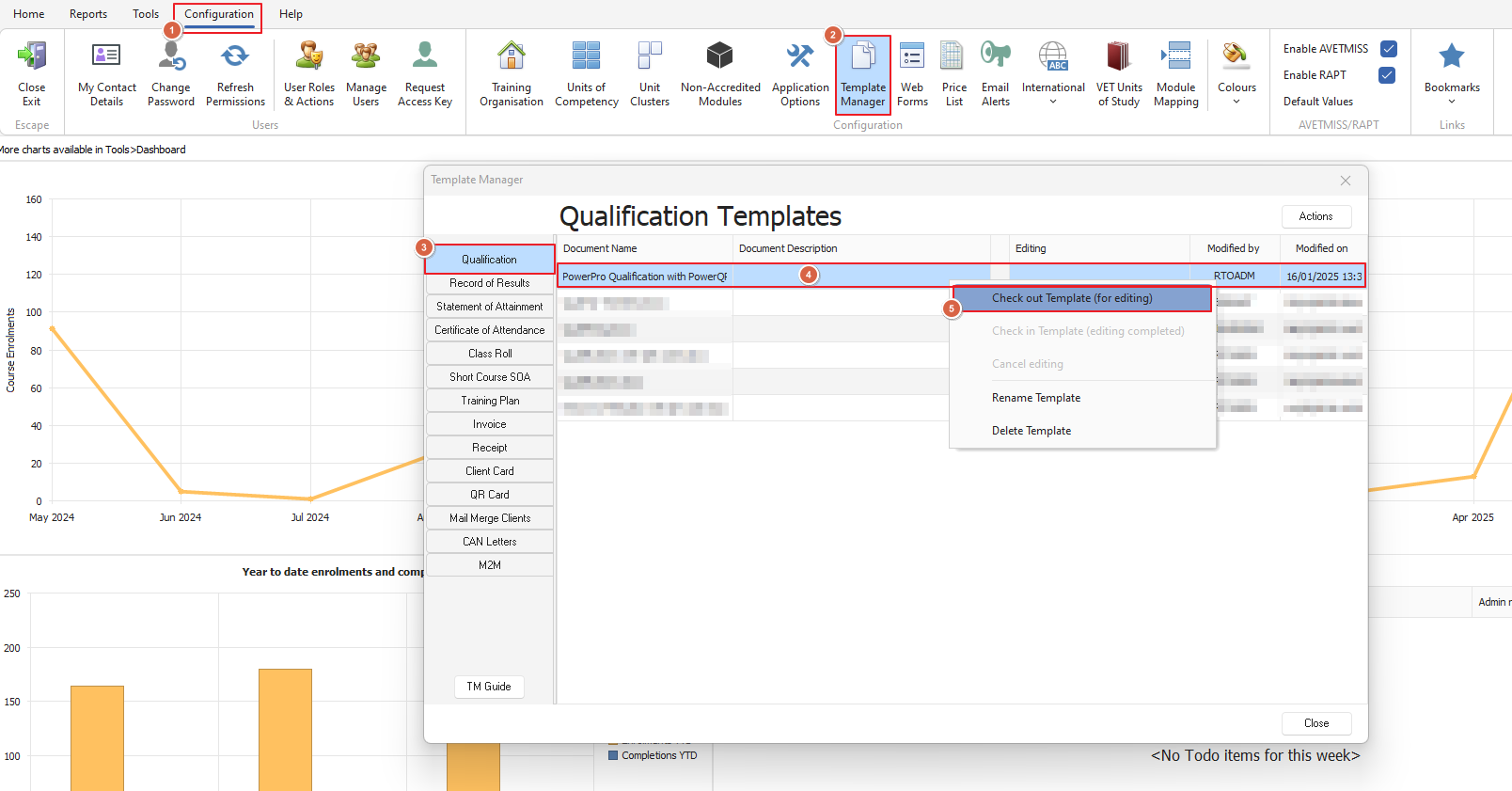
Your template should then open in MS Word and you will need to click on the 'File' option at the top of the page

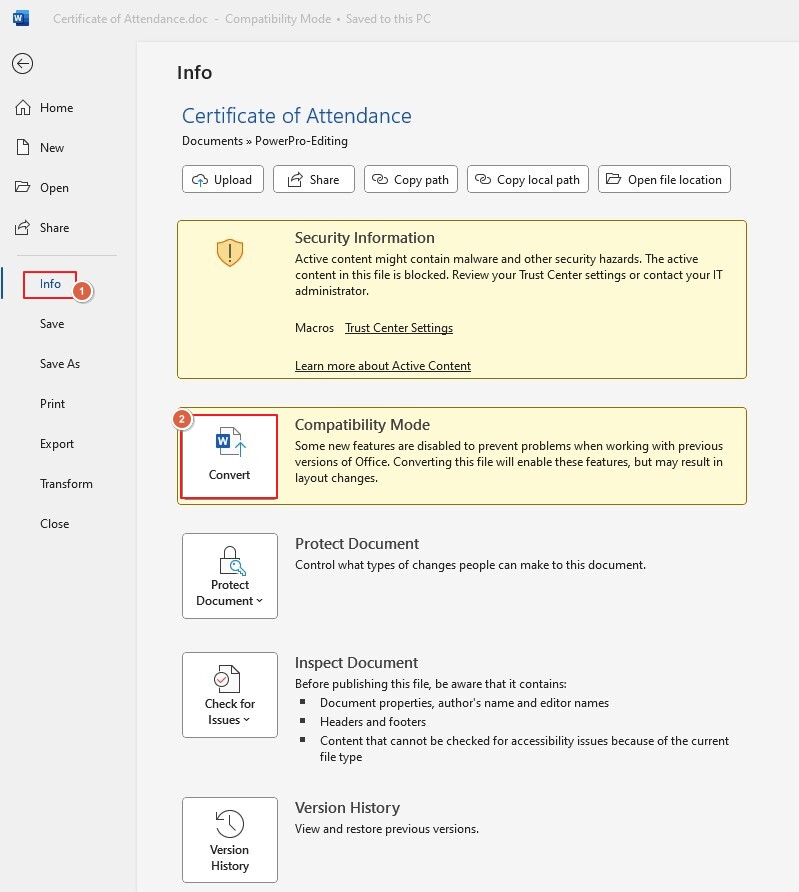
from here go to 'Info' and the 'Convert' option click this to convert your document to the latest file format
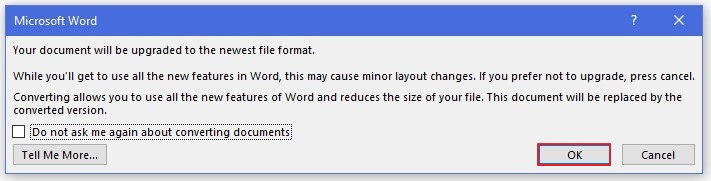
a popup will open to confirm these changes click 'OK'
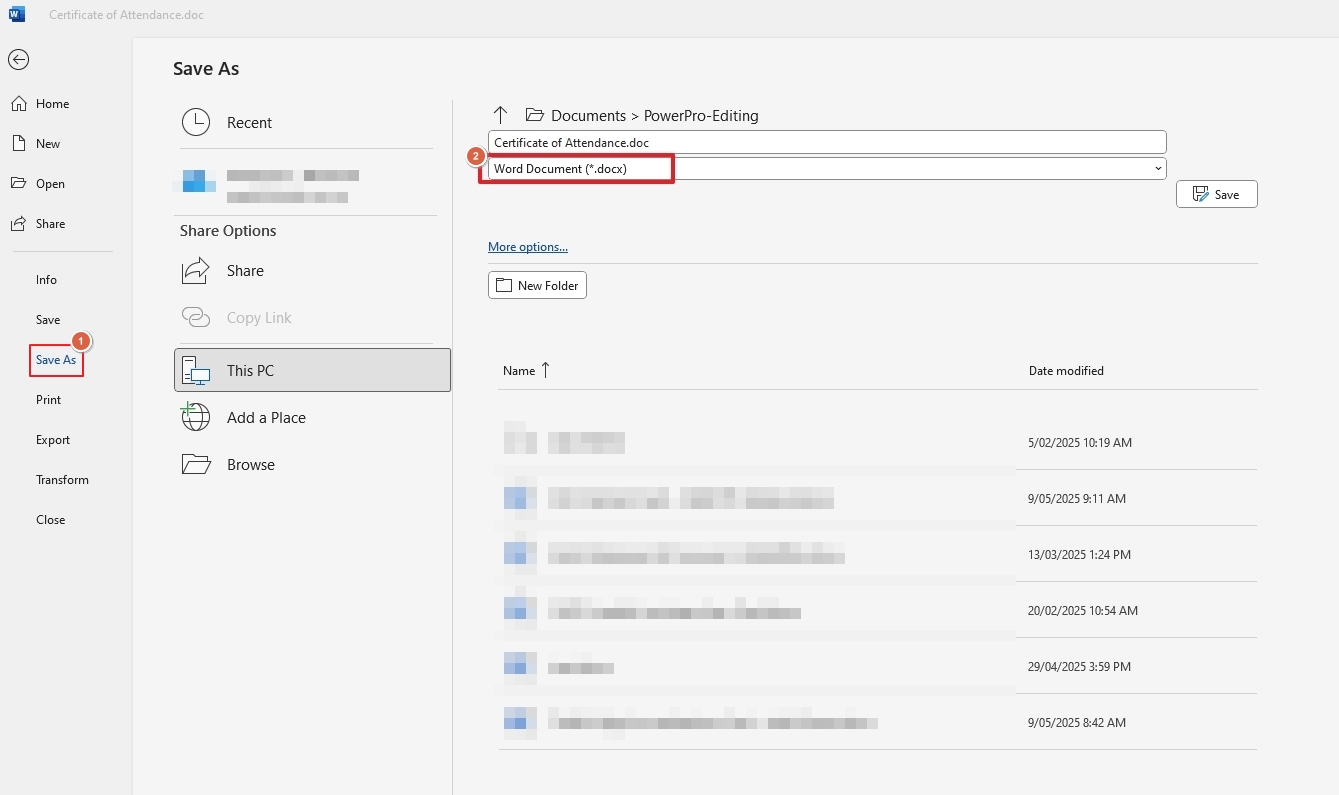
and then go to 'Save As' and save your template as .docx format
Repeat as needed with all your template documents