

At times it is required to add points or weighting to specific units of a course, if this is the case, do the following:
Click on the 'Qualification Rules' button to open the qualification rules
Create a new rule or select the rule to be updated
Click on the Edit button, then click on the Group Actions button then select New Unit Group
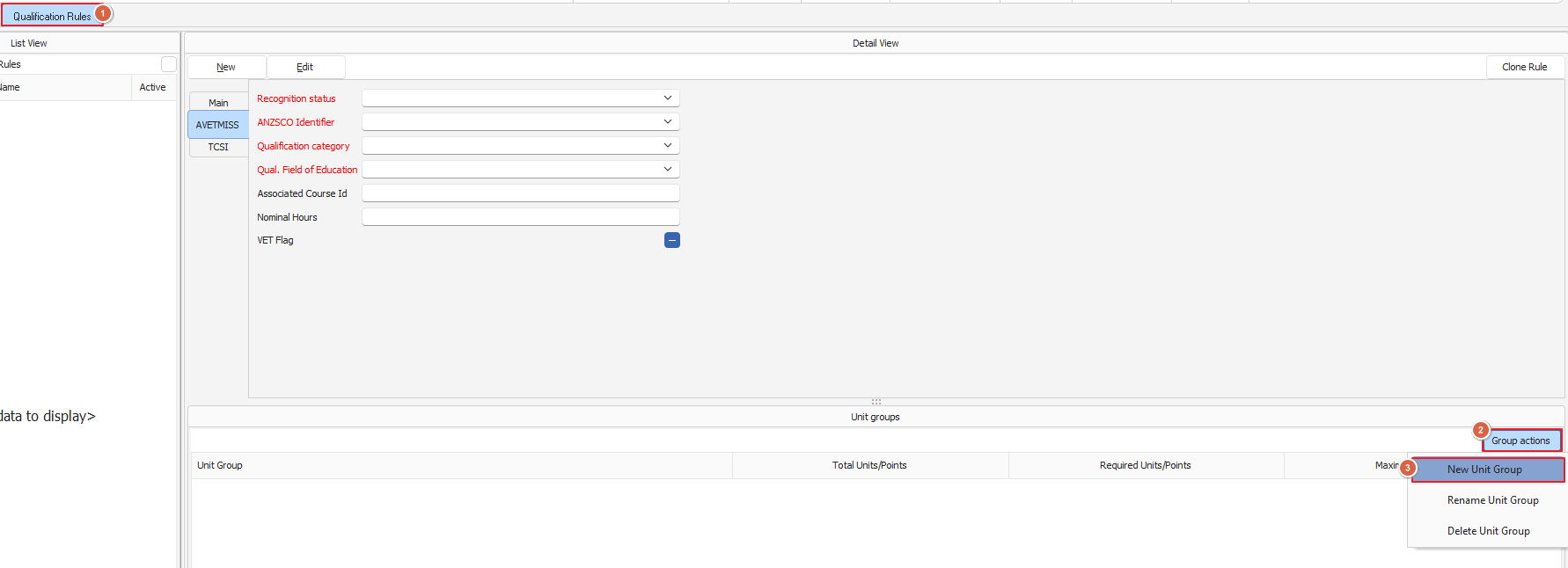
Figure above - Create a new unit group
The New Unit Group pop-up box will be displayed, enter a unit group name then click on OK
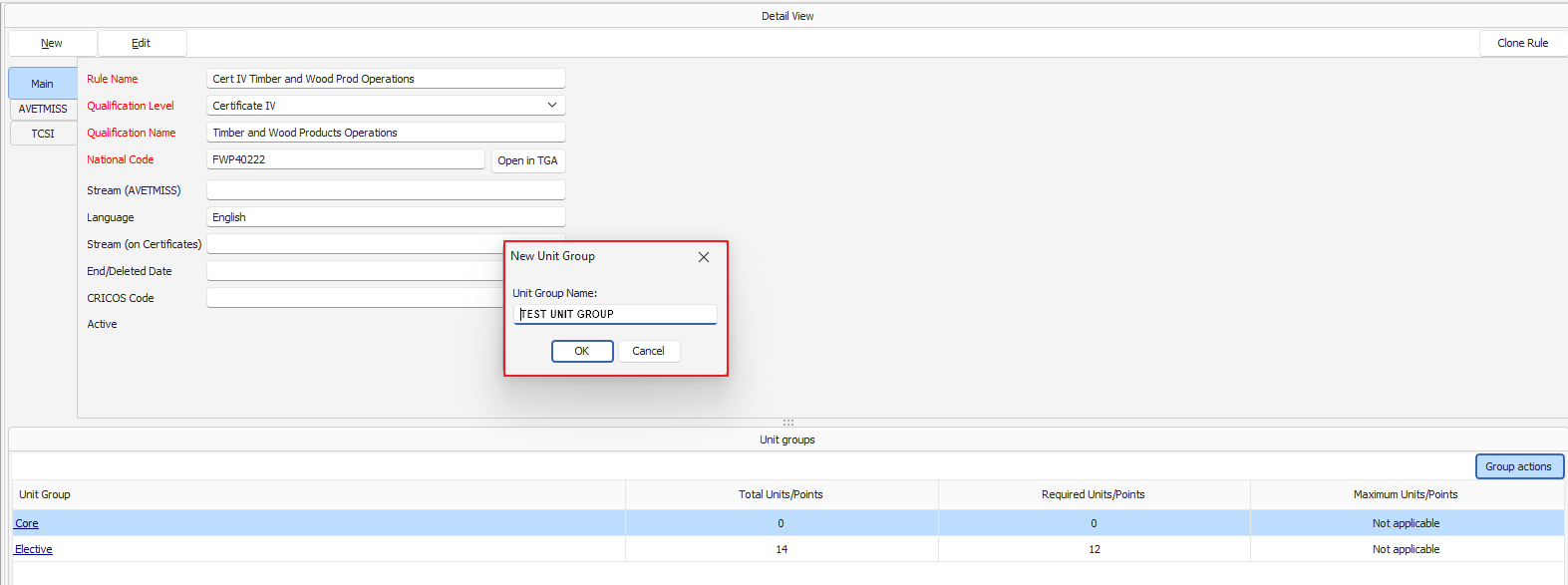
Figure above - Enter a group unit name
The new Unit Group will then be added to the Unit Group List
Double click on the new unit group to bring up the Qualification Unit Group screen, then click on the Add Units button to add the required units
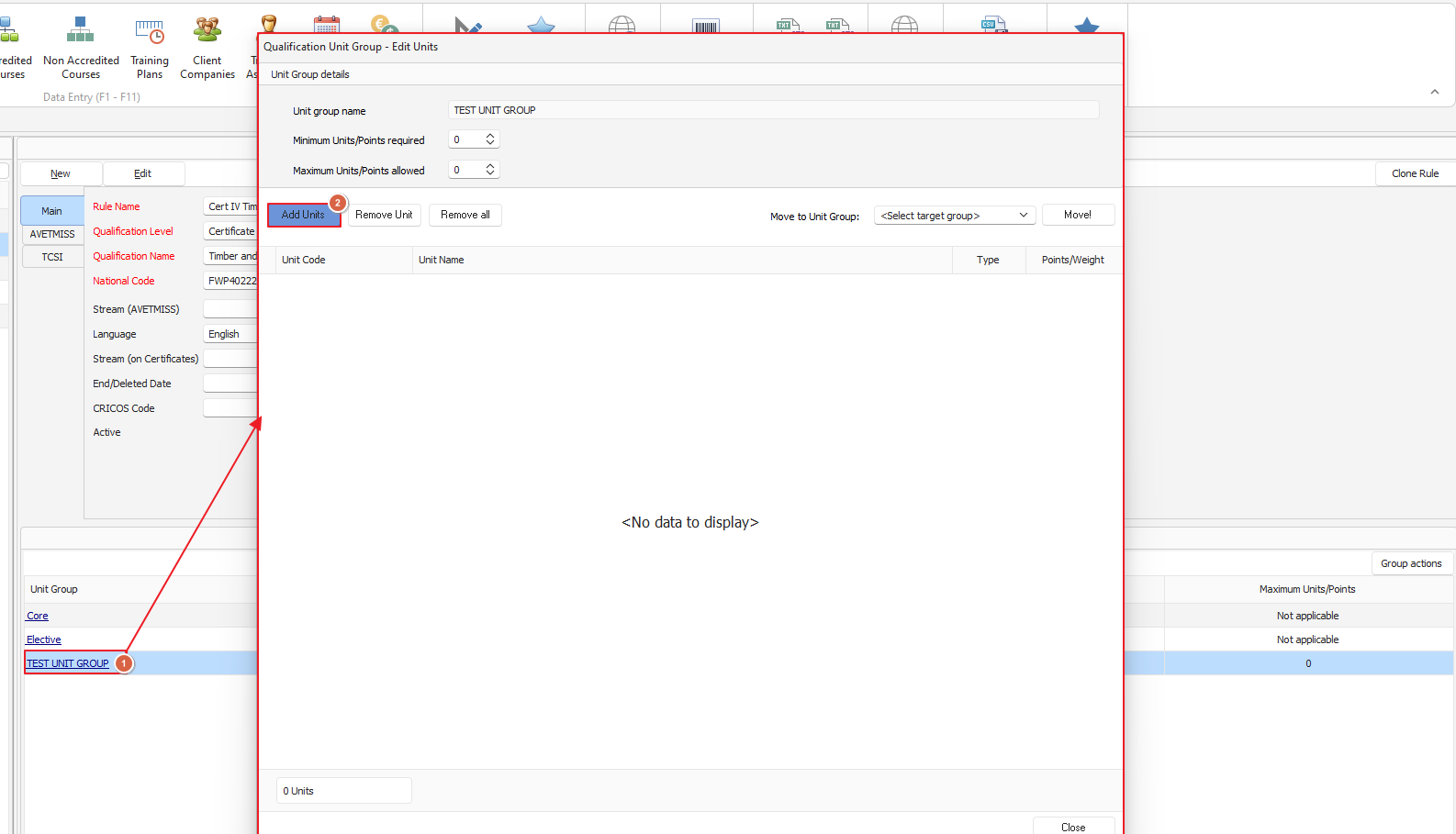
Figure above - Click on the Add Units button
Select the units to be added to the Group in the Add Units screen, then select Add as Core or Add as Elective as needed, then click on OK
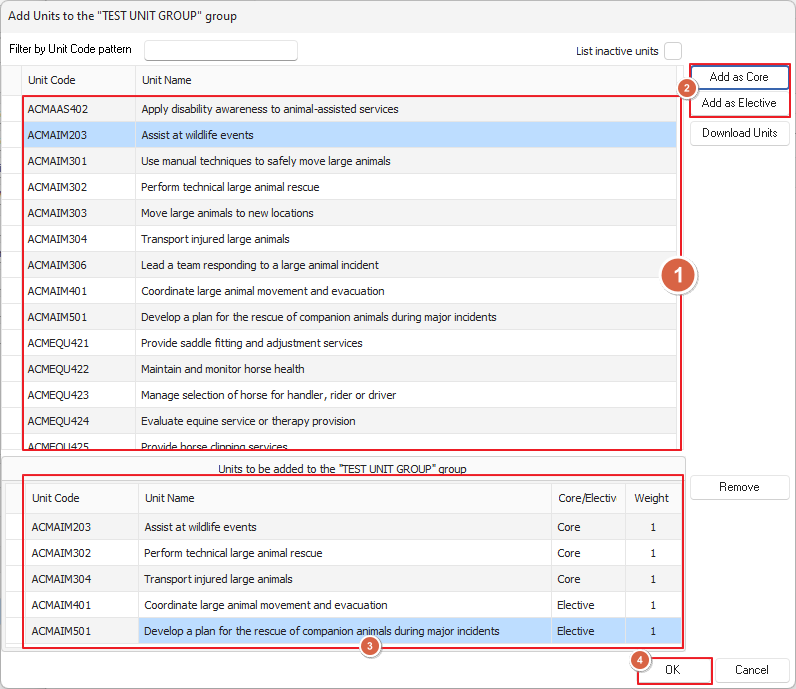
Figure above - Adding units to the Unit Group
Set the minimum and maximum units/points allowed for the Unit Group as needed, then double click on the unit to update the points/weight
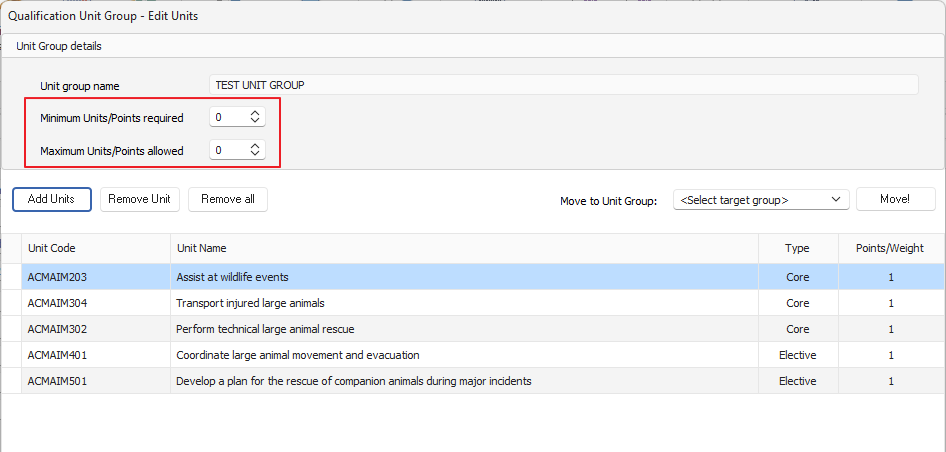
Figure above - Set the minimum and maximum units/points allowed
Enter the points/weight into the field and then click on OK
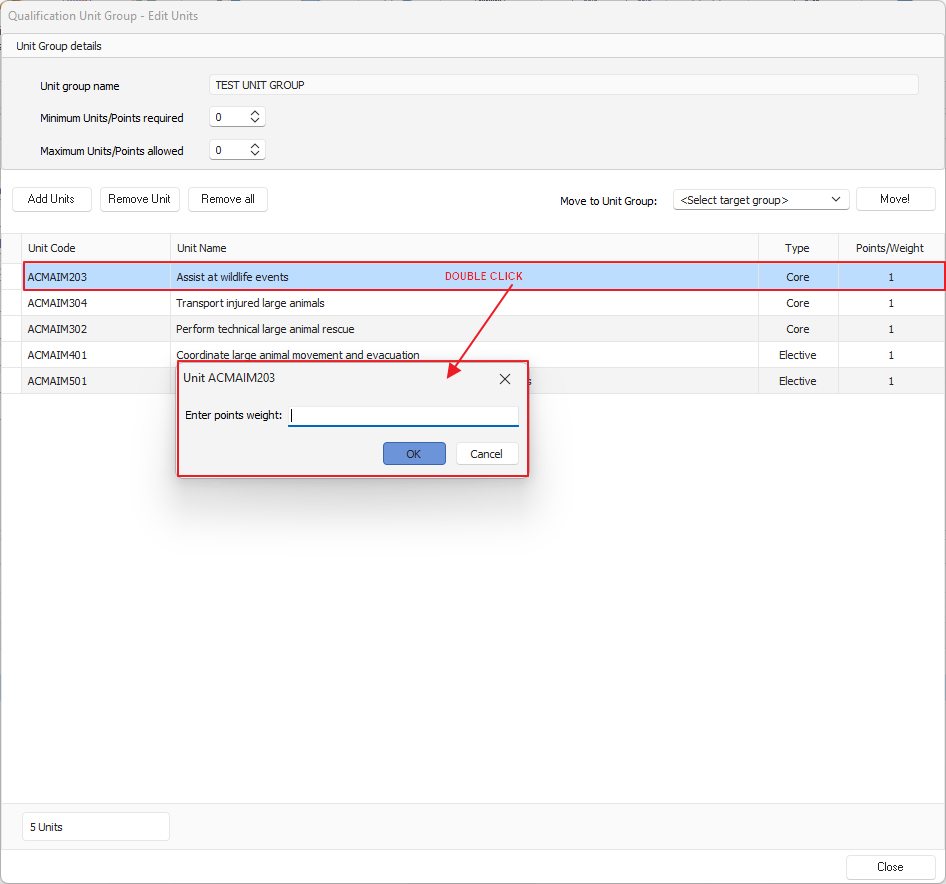
Figure above - Enter the points/weight for the unit
The points/weight will then be updated appropriately and all units that need to be updated will need to be done in this way
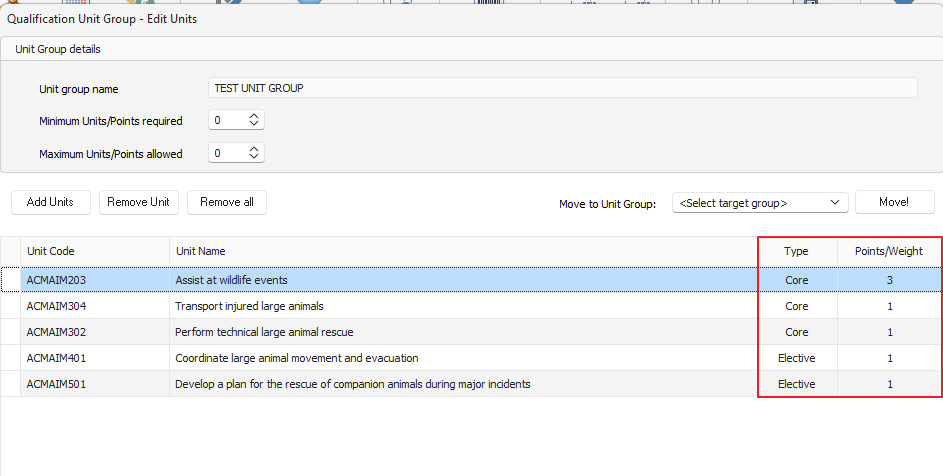
Figure above - Units with points/weight updated
On completion, click on the Close button to close the Qualification Unit Group screen